3 neat Linux apps that might be new to you
This weekend I'm exploring a website generator, a retro-style terminal, and a powerful command bar.

Thanks to the free-range and constantly evolving nature of open source development, I come across interesting Linux software every week. Below are three I think are worth installing when you get a chance.
Eleventy: Easily build a static website
Building a simple website has a lot of uses. Show off a portfolio, make public some important information, or just let people find you without the need for a social media account. It's the old web way of connecting.
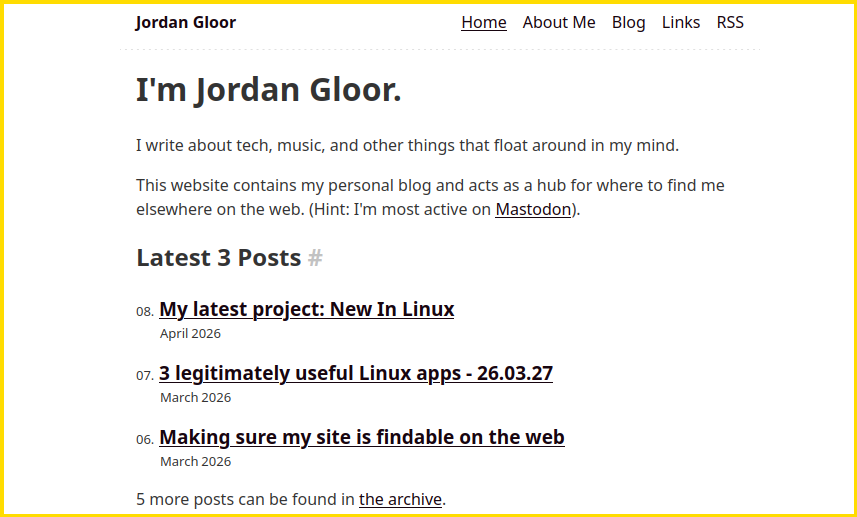
But building a website from scratch is an intimidating prospect, as I know from putting together my personal website recently. Eleventy, or as it's in the process of being rebranded, Build Awesome, was how I avoided spending too much time on basic web development tasks.
Why I like it
So long as you're relatively comfortable in a terminal, creating a simple static website is easy with Eleventy. Write a document in Markdown, and a short npx command automatically converts it to an HTML file and can put it into a folder along with all the other important components for a basic website.
If you add the --serve flag to the website generation command, you can also get a live-hosted rendering of the website that you can actively click through. Not only that, but changes you make to your source files appear automatically, making experimentation easy.
Once you're done, upload the contents of the _site folder to the internet using the host of your choice, and you're golden.
If you have a project a little more complex in mind, Eleventy has extensive documentation on adding cool and useful elements using its templates and plugins. Check out the Starter Projects to get a complete website that you can edit and customize. That's the approach that I used for my website, as you can probably tell if you look at the eleventy-base-blog starter project.
How to get it
To get started, I recommend reading the official guide to installing Eleventy. You'll need npm installed though, which you can install from most Linux respositories with this command:
sudo apt install npm #Debian and Ubuntu
sudo dnf install nodejs-npm #Fedora
sudo pacman -S npm #Arch
sudo zypper install npm-default #openSUSE
cool-retro-term: A terminal emulator that'll take you back
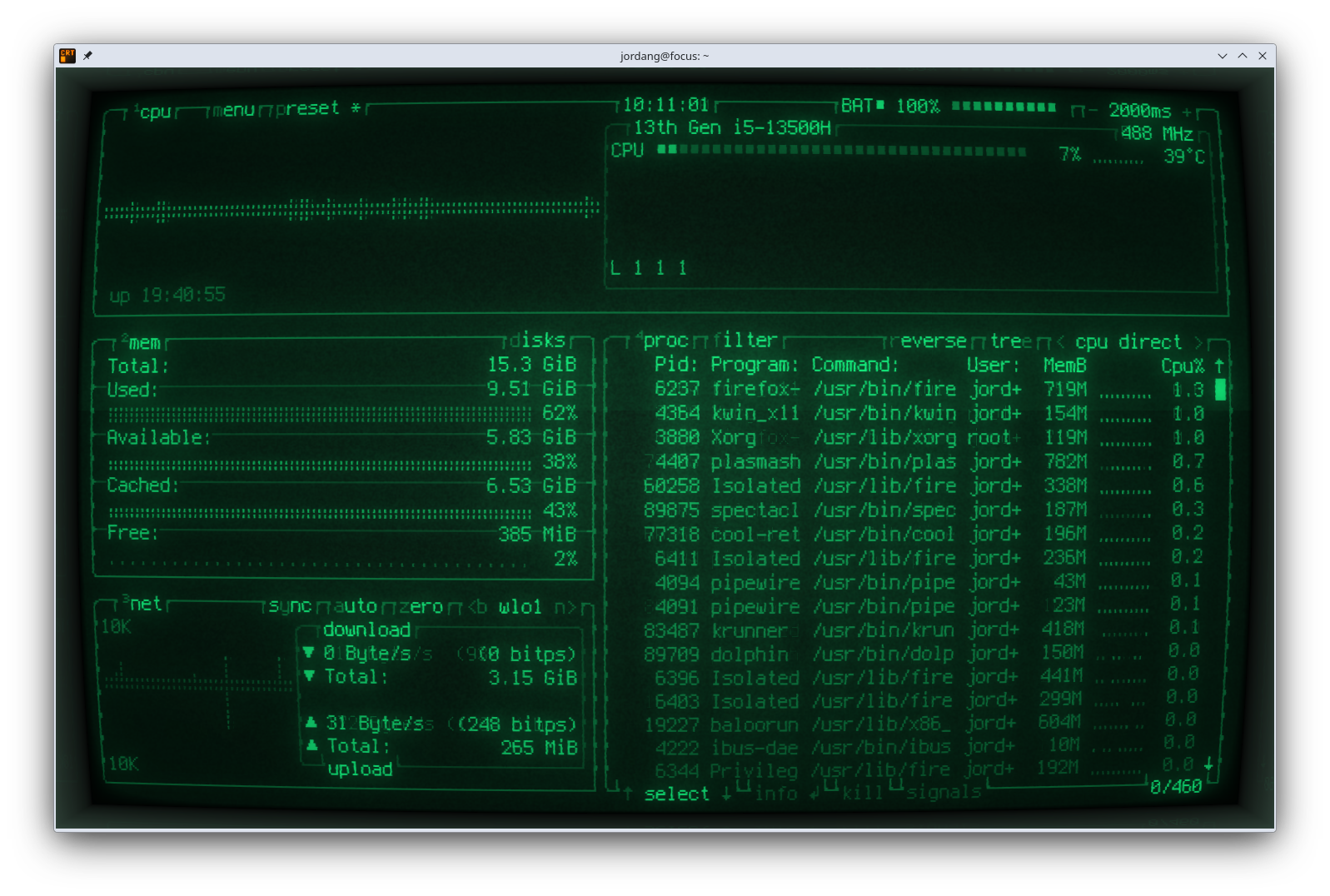
Less practical and more just aesthetically pleasing, cool-retro-term is a unique terminal emulator that imitates the look and feel of several terminals as they were experienced on CRT (Cathode Ray Tube) displays. Scanlines, screen curvature, noise, and even artificial burn-in truly bring you back to when computer displays had a lot more character.
Why I like it
You can choose from nine different preset profiles in cool-retro-term, including Apple II, IBM Dos, and the fit-for-a-movie classic monochrome green (pictured above). The settings menu gives you a lot of control to create your own profile that matches the retro vibe or specific device you're trying to recreate.
If you've been around Linux for long, cool-retro-term may not be new to you (and neither may be CRTs). The app's been around for several years now, but I was surprised to see a beta for version 2.0 was released earlier this year, a full three years after the last release. You can download the beta as an AppImage from the GitHub release page, though I haven't tried it yet, so I can't speak to how stable it is.
How to get it
Everyone else can install cool-retro-term from most Linux distro repositories:
sudo apt install cool-retro-term #Debian and Ubuntu
sudo dnf install cool-retro-term #Fedora
sudo pacman -S cool-retro-term #Arch
sudo zypper install cool-retro-term #openSUSE
KRunner: Run programs, search, and more in a flash
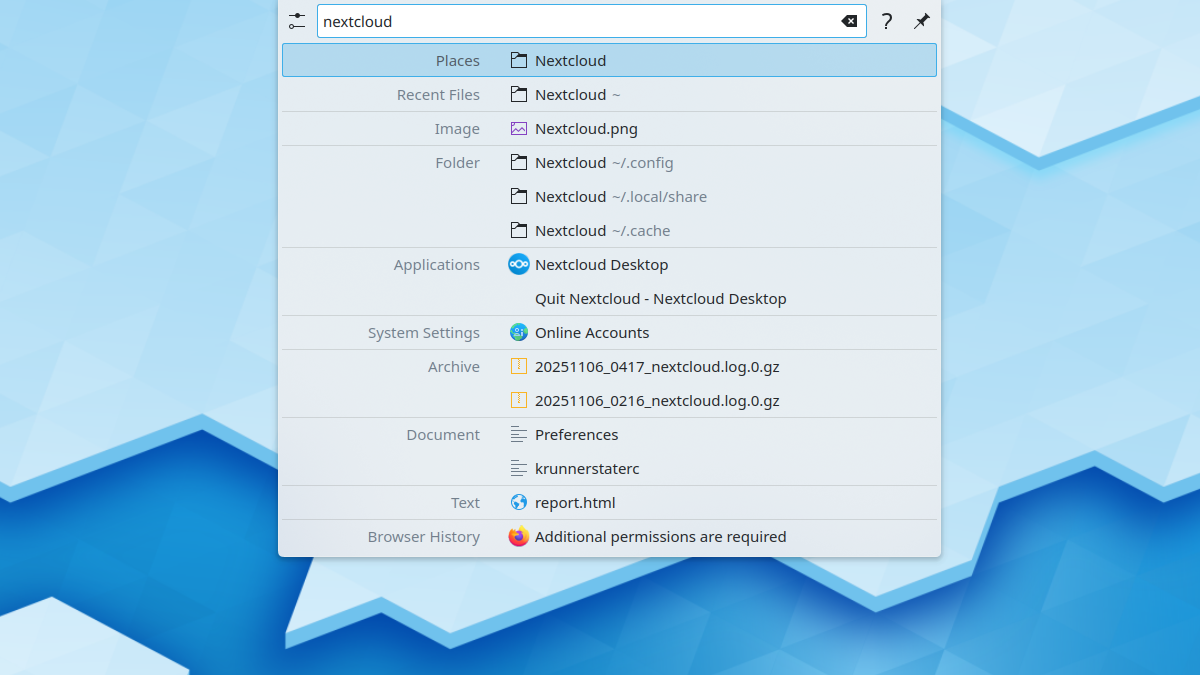
If you use the KDE Plasma desktop, you should be using KRunner. It's a tool built into KDE that can be called up with a simple shortcut, and in turn it gives you a shortcut to accomplishing all kinds of tasks.
Why I like it
My favorite feature of KRunner has got to be its ability to run web searches. After opening KRunner, I can just type d: followed by whatever search term I want, and DuckDuckGo will pop open in my browser with the search results. There are dozens more of these search shortcuts, like wp: for Wikipedia searches, arch: for ArchWiki searches, and proton: for ProtonDB searches.
KRunner is configurable, too. Any of those shortcuts can be changed if you modify your Plasma Search settings, and you can even create custom search shortcuts for any web search you want.
You can also use KRunner just to search your computer's files and applications, to do basic math, and to run terminal commands. You can even use it to quickly change power settings or kill programs by name.
How to get it
KRunner is integrated with the KDE Plasma desktop. Just hit .Alt+Space to call it up and start typing your commands.
If you're not running KDE Plasma but you're interested in trying it, I recommend Kubuntu.
I write these recommendations on a weekly basis, so check out my previous roundup on my personal blog for more.