Try a new Linux app: 3 worth installing
Want to take control of your Linux PC's GPU? This app does everything. Plus, PDF editing and terminal-based file browsing made easy with Okular and Yazi.


As computer prices soar, it's important more than ever to make the most of your de-Microsofted computer. These free and open source Linux apps and tools I've found useful to everyday work on a computer.
LACT: Open source GPU control
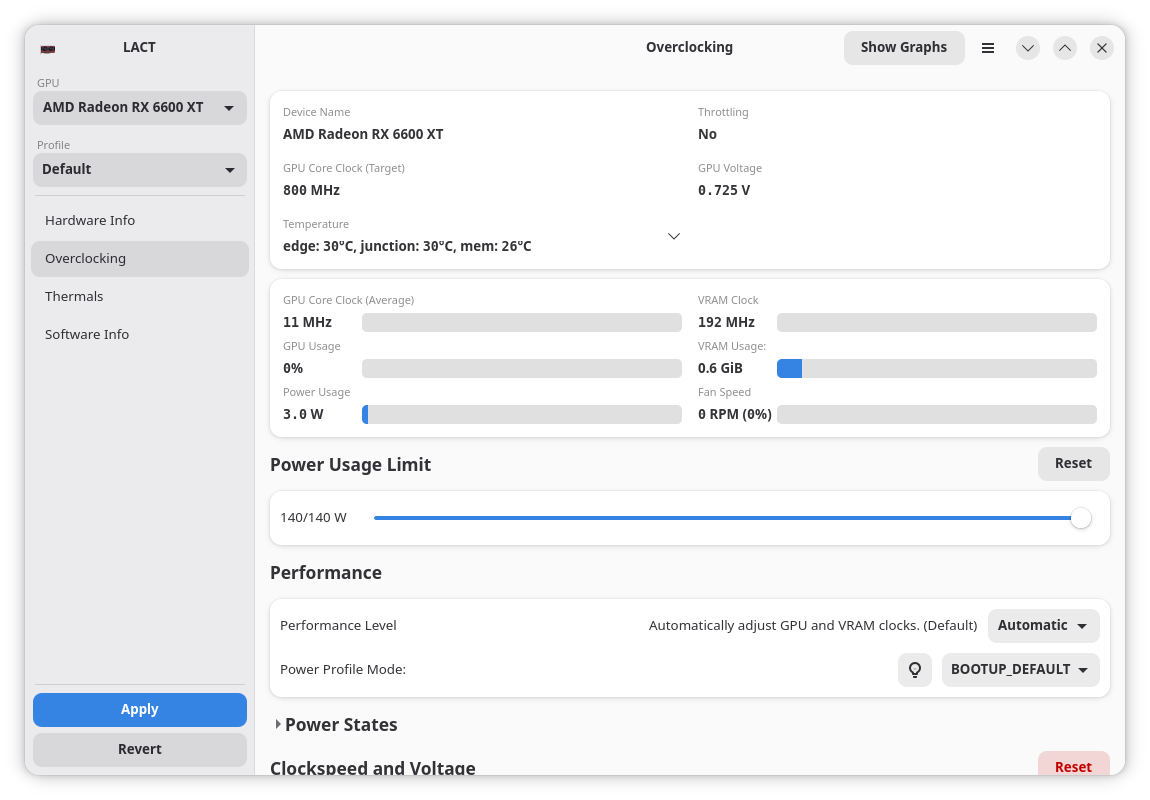
If you have a dedicated graphics card in your Linux PC, maximizing its efficiency is important. Graphical vendor software like AMD Adrenalin that make it easy to control your GPU isn't supported on Linux.
That's where LACT comes in. It gives you control of your GPU's fans, lets you overclock or undervolt your GPU, and provides profile creation and automatic switching to optimize your experience. Charts and log dumps let you scope out issues with ease, and all of this is in one graphical app.
Why I like it
One of the best things about LACT is that it's vendor and brand-agnostic, with most features being available to most cards. That means I don't have to completely switch software when I switch to another device with a card from a different vendor.
How to get it
LACT is available as a Flatpak, which means you can search your software store and it will likely be there. Otherwise, you can download DEB and RPM packages from the GitHub releases page, or Arch folks can install it with sudo pacman -S lact.
Be sure to read the hardware support page to make sure you understand any limitations for your card.
Okular: Viewing (and surprisingly) editing PDFs made easy
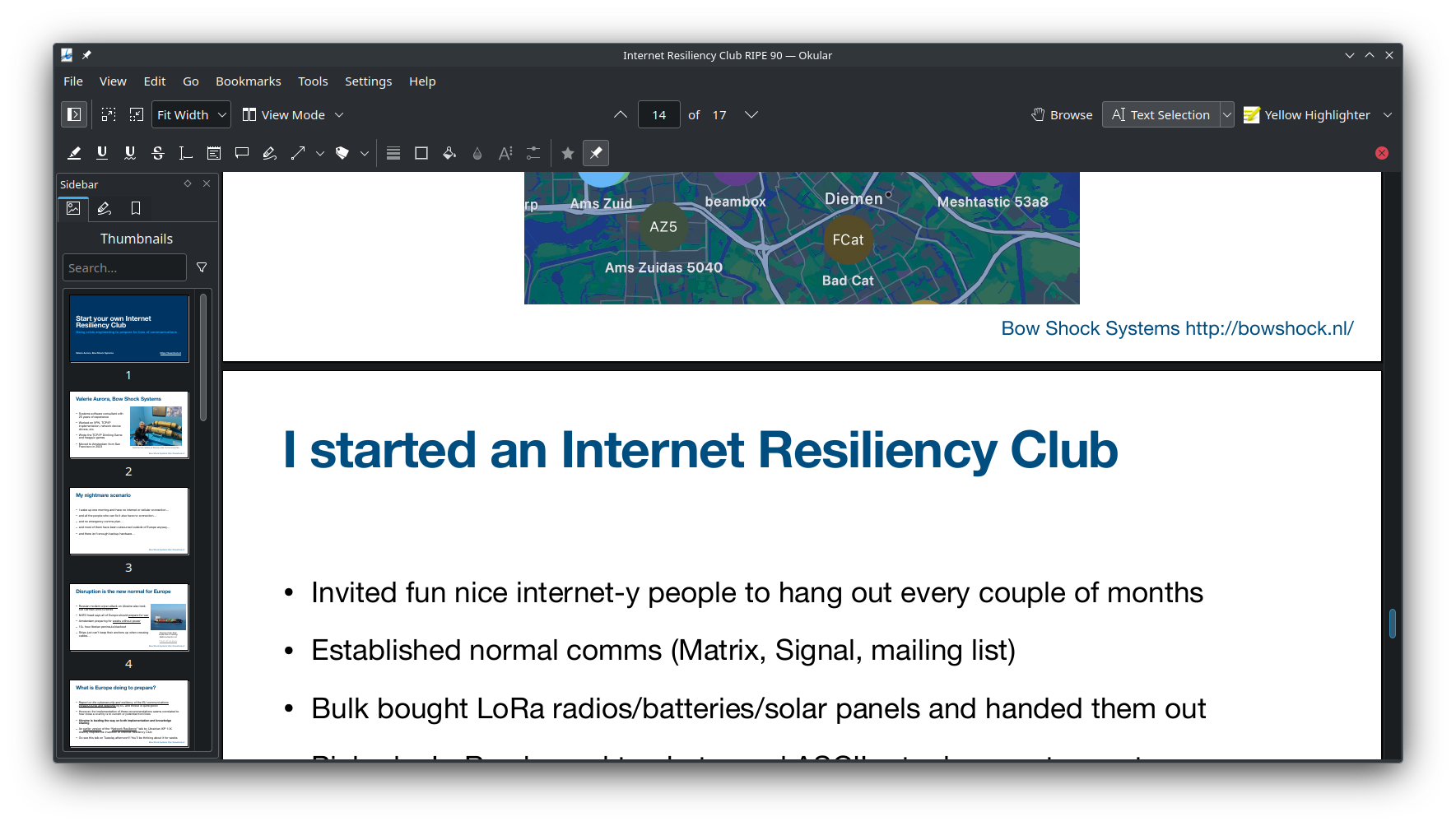
When you switch to Linux and have to leave behind Windows-only software, one of the hardest replacements to make is that of Adobe Acrobat. It remains the industry standard for viewing and editing PDFs.
While some of its most advanced features can't yet be replicated, Okular is the best replacement that I've found. It's an open source PDF app developed by the KDE team.
Why I like it
Okular can do a lot of things you'd expect from a PDF viewer, like read them aloud and digitally sign them. Where it really shines though is its annotations function, which, oddly, is hidden by default.
If you're trying to complete a form or annotate an essay, you have to look in the top menu and click Tools > Annotations to make the most useful tools appear. Then you can draw, highlight, type text, write comments, and more.
How to get it
Okular is available across Linux distributions, so it's likely available in your software store. You can also install it via the command line:
sudo apt install okular #Debian and Ubuntu
sudo dnf install okular #Fedora
sudo pacman -S okular #Arch
sudo zypper install okular #openSUSE
Yazi: File management at the races
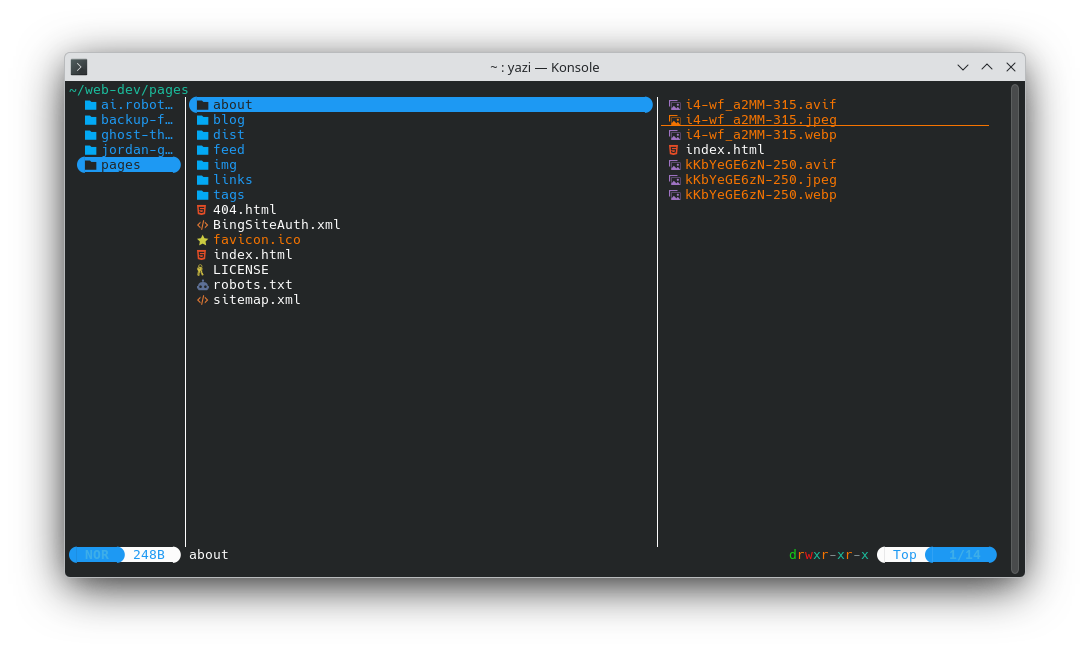
If you're still moving through directories in your terminal with the cd command, you should be aware there's a better way. Terminal-based file managers make navigating directories a lot faster, and yazi is one of the fastest.
Why I like it
Yazi takes advantage of the Rust programming language's efficiency and combines that with process optimization tricks to make file previews pop and huge directories load in milliseconds. While I prefer the interface of spf, I think Yazi takes the cake for quickly finding files.
It also integrates with several other command line tools to pull off things others can't, like using ffmpeg to generate video thumbnails.
How to get it
You can get Yazi from certain Linux repositories, including Arch Extra and OpenSUSE Tumbleweed. At the Yazi release page you can download DEB and Snap packages, or universal binaries. See the Yazi installation guide for more niche options.
sudo pacman -S yazi #Arch
sudo zypper install yazi #openSUSE
I find and share Linux app recommendations every week. You can get them delivered right to your inbox by signing up for my free weekly newsletter!