2 useful Linux apps and 1 command worth trying
This week I'm exploring a feed aggregator, a duplicate finder, and a drop-down terminal.


Finding useful software on Linux in the sea of free and open source projects that are so readily available in the ecosystem is a challenge. Below are three apps that are actually useful, including a simple terminal command.
Akregator: A simple RSS feed aggregator
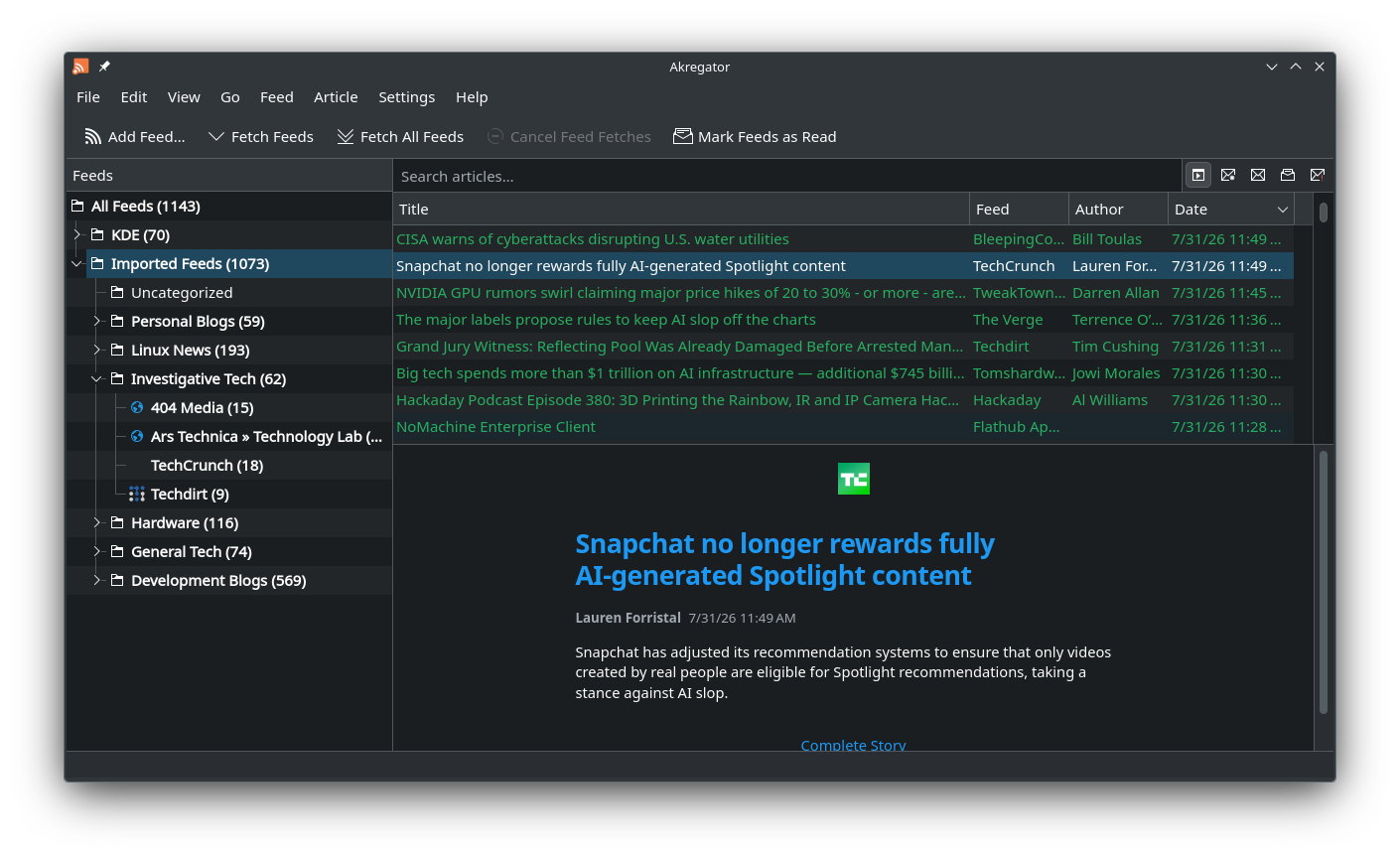
These days, it seems like the conventional way to get your news is through social media, if not through cable television. You can get more direct access to news (and even certain kinds of social media posts) in a more direct and centralized way through a news feed reader like Akregator. It supports RSS and Atom feed types, letting you see articles from all kinds of publications as they're published (including New In Linux's feed).
If you've never used RSS feeds before, Akregator is a great place to start. I say that because it has a very simple interface, there are no ads involved, and unlike some aggregation services, you have no subscriptions to pay for.
Why I like it
To be honest, I spend most of my time using RSS Guard instead, but only because it supports connections to my self-hosted FreshRSS instance. Setting that up though requires advanced computer skills, so it isn't for everyone. Those wanting a lower-tech solution will find Akregator one of the easiest to start using.
Plus, if you start out with Akregator and later decide you want to use a different app, all you need to do is export your list of feeds and import them into whichever aggregator you prefer.
How to get it
Akregator is available widely across Linux distributions, so you'll likely find it just by searching your software browser. You can also find it on Flathub.
sudo apt install akregator #Debian and Ubuntu
sudo dnf install akregator #Fedora
sudo pacman -S akregator #Arch
sudo zypper install akregator #openSUSE
Rdfind: Find duplicates in your terminal
Thanks to AI data centers buying out supply, computer storage costs have increased to incredible highs and are staying there. That means free storage space on your existing drive is more valuable than ever, and one common storage hog is duplicate files.
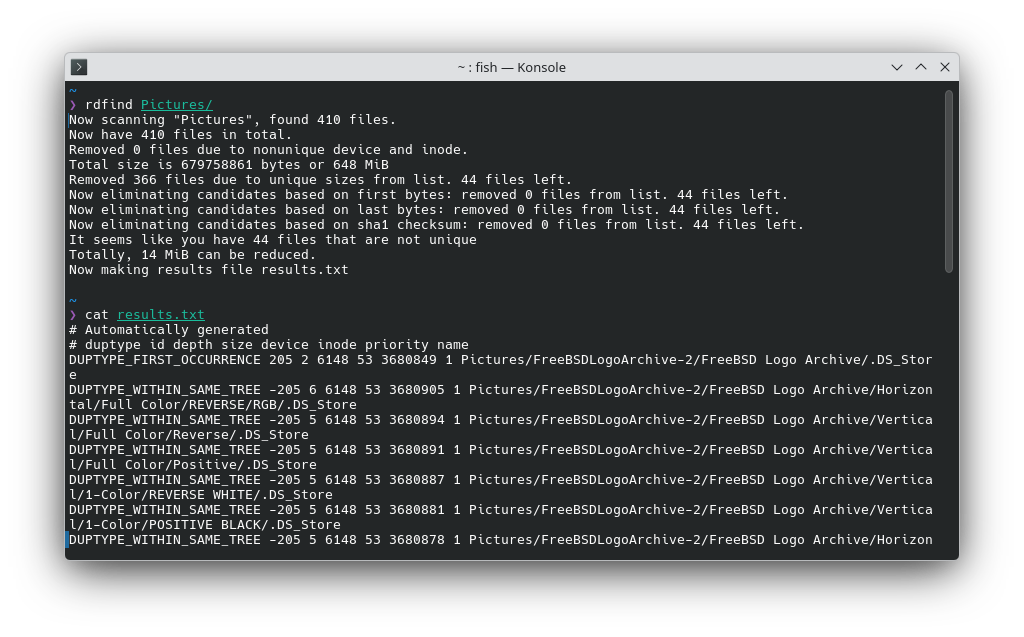
The rdfind command line tool lets you quickly scan entire directories for duplicate files just by running rdfind path/to/directory/. It scans each file's content to identify duplicates, ignoring the file's name since duplicates often get renamed.
By default, rdfind puts a list of identified duplicates in a file called results.txt. You can use the file as a reference as you find and delete those files. If you don't mind the risk of losing data, you can also ask rdfind to automatically delete the duplicates it finds with rdfind -deleteduplicates true path/to/directory/.
Why I like it
Recently I was looking through some of my photo archives, and I realized I had several duplicate image files. Annoyingly, they often had different file names and timestamps, making it difficult to clean up.
I knew there were graphical programs for identifying and sorting through images, but I wanted a really quick command to resolve it without having to worry about file names. rdfind was it.
How to get it
The rdfind tool is available in most Linux software repositories, meaning you can easily install it with your package manager, including any of these options:
sudo apt install rdfind #Debian and Ubuntu
sudo dnf install rdfind #Fedora
sudo pacman -S rdfind #Arch
sudo zypper install rdfind #openSUSE
Yakuake: A terminal in the style of Quake
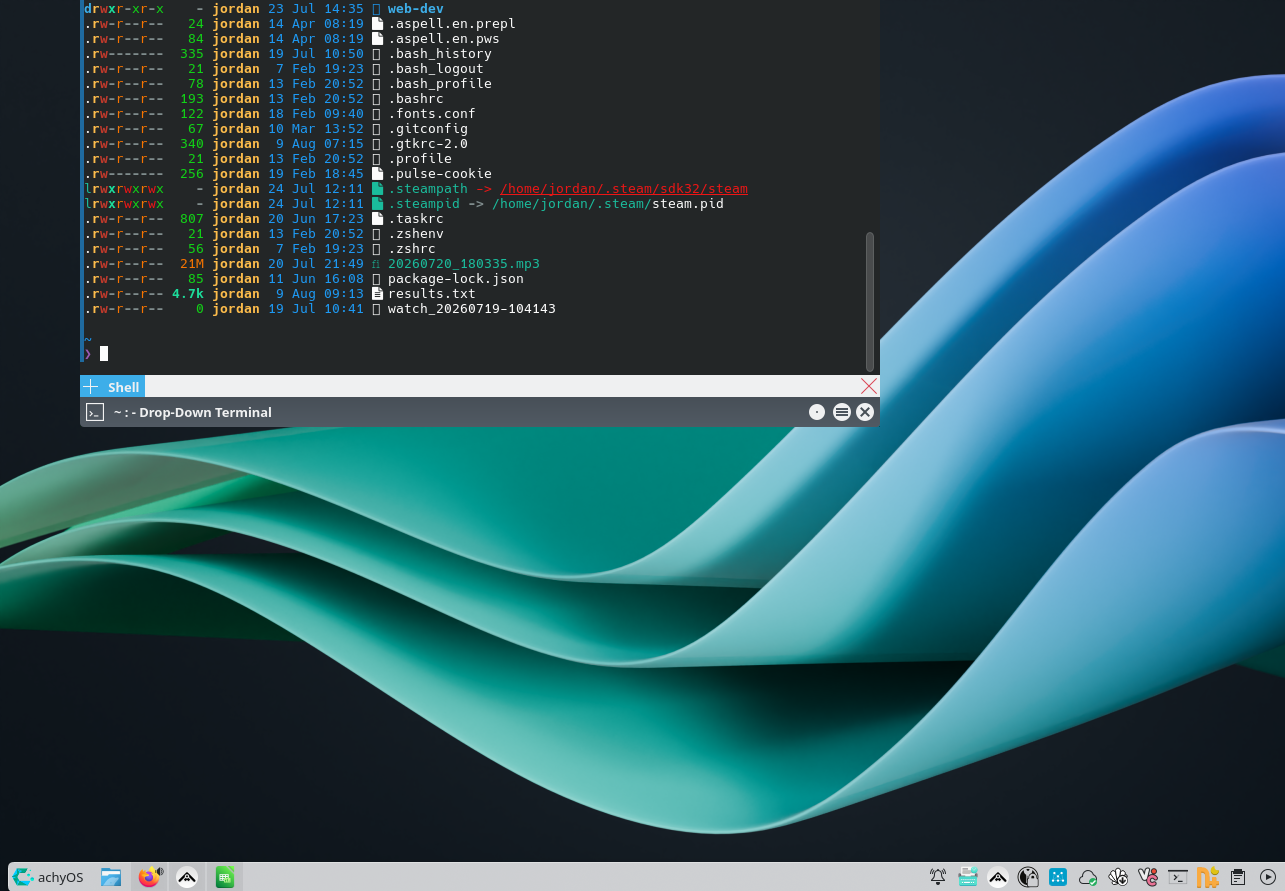
Speaking of terminal commands, I perform most of mine inside a free and open source terminal emulator called Yakuake. It stands apart from the competition by being a drop-down terminal, meaning it stays hidden until you call on it to drop-down onto the screen with a hotkey. It can then be banished from the screen again with the same hotkey, much like the terminal in the Quake games, which is where it takes its name from.
By default, the key to open it is F12, but you can set it to whatever key or key combination you prefer.
If you're someone who likes to keep a tidy desktop and only needs to run commands occasionally, Yakuake (or its GNOME-based counterpart, Guake) can be a surprise organizational upgrade. It supports tabbing for operating multiple terminal sessions and can be customized to appear exactly how (and where) you'd like.
 Jordan Gloor
Why I like it
I tend to be a minimalist about my Linux PC's desktop, so I like how Yakuake stays out of my way except when I need to run a quick command.
Using KDE Plasma's keyboard tools, I actually managed to repurpose my Caps Lock key to open Yakuake. On my 75 percent keyboard, I love being able to give that key a purpose with a hotkey I actually use.
How to get it
You can find Yakuake on Flathub and in just about any Linux software repository, so search your software manager for it or run one of these commands:
sudo apt install yakuake #Debian and Ubuntu
sudo dnf install yakuake #Fedora
sudo pacman -S yakuake #Arch
sudo zypper install yakuake #openSUSE
Check out my archive of Linux app recommendations if you're still searching for good software. I post them every week, so be sure to subscribe to the newsletter, too.