3 handy Linux apps worth installing this weekend
Try a text-based file browser, a simple image writer, and a minimalist text editor. All free, all open source.


There's an ocean of free and open source software out there that's compatible with Linux. I try new ones every week, and these are the apps I'm most excited to tell you about, with links to where you can get them.
Impression: Easy image writing
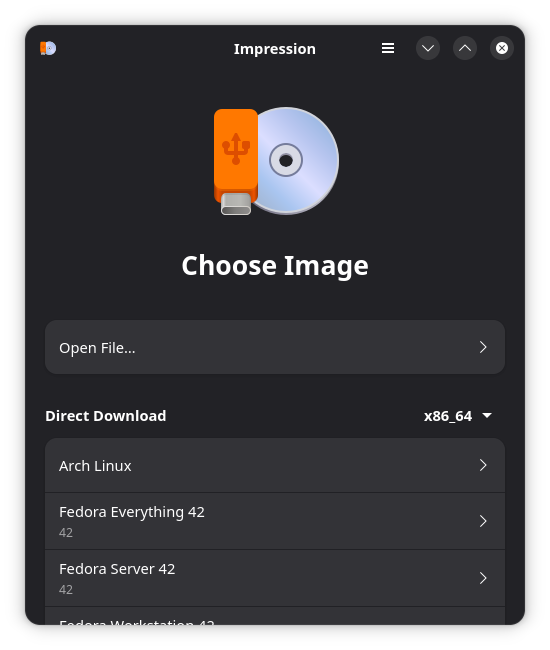
If you try a lot of Linux distributions, an image writer ends up being invaluable. Impression is one of those graphical applications for writing images to USB drives, and it stands out from the rest for its in-app downloads and fitness for GTK environments. In fact, it's an official GNOME Circle app.
Why I like it
I like Impression's simplicity and reliability. I've used many image writing tools, and Impression is the one I keep coming back to because it's distro-agnostic and it's never given me issues. Plus, it's super simple to use. Just select the image file to write, select the external drive you want burned, and click "write."
One issue though: While the in-app image downloads are nice, the selection is pretty limited. At the time of writing, some of the options have reached end-of-life or will soon, so I haven't used that feature much. If those options were a little more diverse and up-to-date, Impression could be a 10 out of 10 app by my standards.
How to get it
The recommended way to download Impression is as a Flatpak, and it's available through the Flathub repository. Arch users can also install it from the command line with sudo pacman -S impression.
KWrite: Text editing with just the essentials
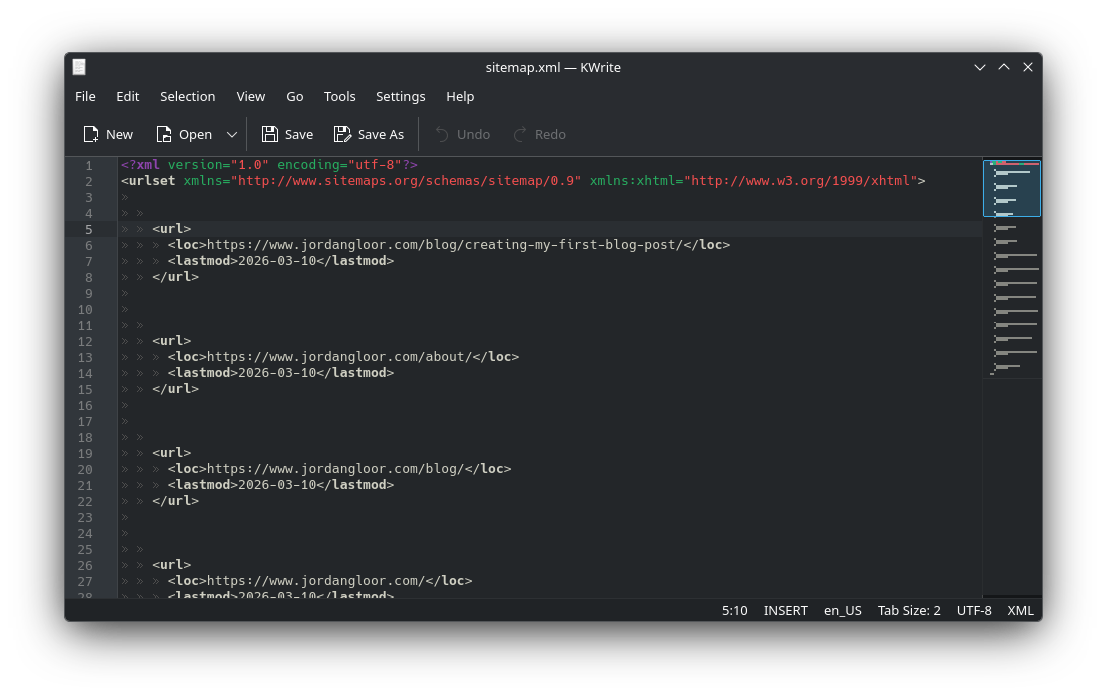
Switched to Linux from Windows and need a replacement for Notepad or another simple text editor? KWrite is a free and open source Linux app from the KDE community that gives you just the essentials for editing text.
KWrite sports a minimalist interface without sacrificing important text editor features. You can find-and-replace, you can toggle indentation and highlighting, and you can check spelling. Advanced users can even switch to vi-style input methods.
Why I like it
While I use KWrite's parent app, Kate, for development work, I appreciate KWrite's similar but stripped-down experience for basic edits. No sessions or git repositories to manage, but I can have multiple files open in tabs when needed. Plus, since it's a KDE app, it fits right into my Plasma desktop.
By hand and without a slop assistant, I write these app recommendations every week. You can get them in your inbox by subscribing, and a paid subscription also supports open source software development.
How to get it
KWrite is available across Linux repositories, but also available as a Flatpak and a Snap. Sometimes, as in the case of Arch Linux, KWrite is only available bundled with the app it's derived from, Kate.
sudo apt install kwrite #Debian and Ubuntu
sudo dnf install kwrite #Fedora
sudo pacman -S kate #Arch
sudo zypper install kwrite #openSUSE
nnn: Navigate your file system
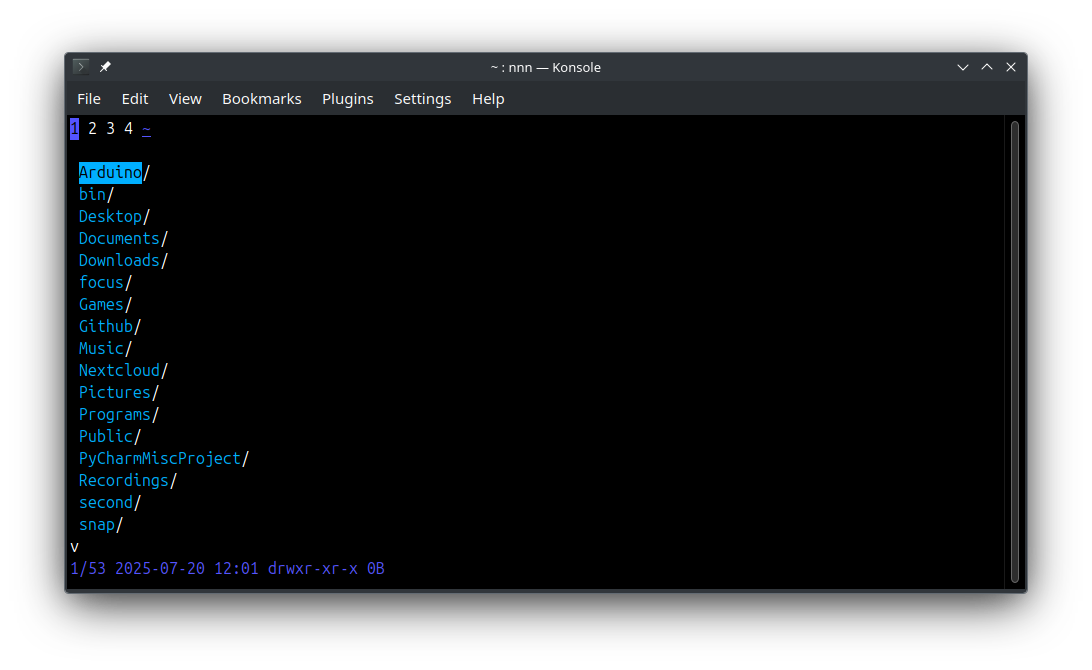
Ever feel encumbered by your file browser? The nnn application for Linux terminals lets you speed through directories to locate and open files with either your arrow keys or vi-style hotkeys. Sometimes called n³, nnn is designed to be super lightweight and to avoid wear on your hard drive.
It also displays basic file information at the bottom of the screen, allows for multiple tabs (named and toggled by number keys), and can do basic file operations like delete, copy, and archive. It's also customizable and extensible with a huge library of plugins.
Why I like it
I use nnn in place of my regular graphical file browser when I know where to find something and I don't need the assistance of a graphical interface with lots of bells and whistles to navigate to it. Avoiding the use of my mouse can save a lot of time and energy over time.
It's also just intuitive and easy to use. I'd consider nnn a great introduction to text-based user interfaces since it's so simple and practical; you'll actually use this one.
How to get it
The nnn tool is available widely across Linux distributions. It can be installed with one of these commands:
sudo apt install nnn #Debian and Ubuntu
sudo dnf install nnn #Fedora
sudo pacman -S nnn #Arch
sudo zypper install nnn #openSUSE
If none of these applications are quite your cup of tea, don't worry. I have a whole archive of Linux app recommendations you can browse for free.