3 Linux apps that make your Wi-Fi network more useful
Need a simple speed test, a network analyzer, or just a tool for sending data between your phone and your desktop over the network?


Are you looking for handy Linux apps to try? I found three free and open source examples that let you optimize your network or make more use of it, either over Wi-Fi or an Ethernet cable.
KDE Connect: Wirelessly connect your phone and Linux desktop
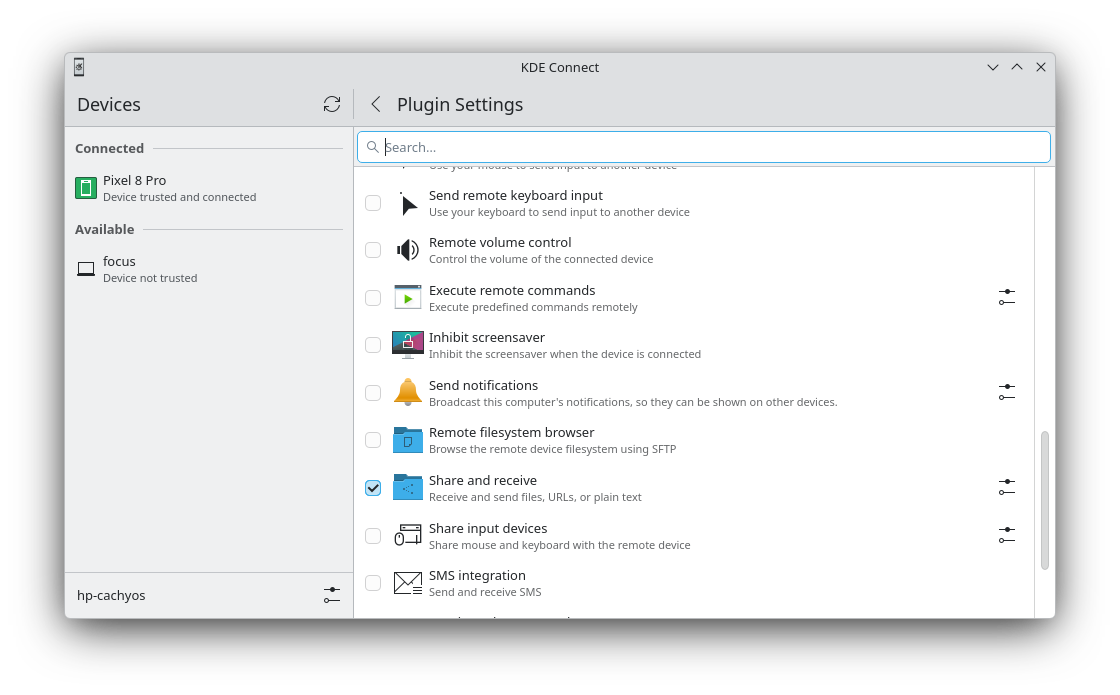
When you're using your Linux computer, you probably have a phone there with you, and both devices are probably connected to the same network. If you install KDE Connect on both devices, you can pass data between them, and KDE Connect is a Swiss Army Knife for that.
With KDE Connect, you can send files between devices in a flash, use your phone's screen as a touchpad, read and send texts from your PC, send pings to your phone in the case that you lose it. Those are just a few of the features that, by the way, are each individual "plugins" that you can enable and disable based on your preferences. Best of all, it works with just about any phone, and without Bluetooth.
Why I like it
The most I get out of KDE Connect is sending files back and forth between my phone and computer. I find it especially useful when I'm using KDE Plasma on my Linux computer, since it integrates nicely with the tool, putting a "Send to phone" option in just about any context menu.
GNOME folks can also use GS Connect instead to get a similar experience without the KDE Connect app.
How to get it
KDE Connect is widely available across Linux repositories. That means you can likely find it by searching your built-in software browser. Otherwise, you can find it install it with one of these commands:
sudo apt install kdeconnect #Debian and Ubuntu
sudo dnf install kde-connect #Fedora
sudo pacman -S kdeconnect #Arch
sudo zypper install kdeconnect-kde #openSUSE
Also be sure to get the mobile app on your phone from F-Droid, Google Play, or the App Store.
LinSSID: Analyze your airways
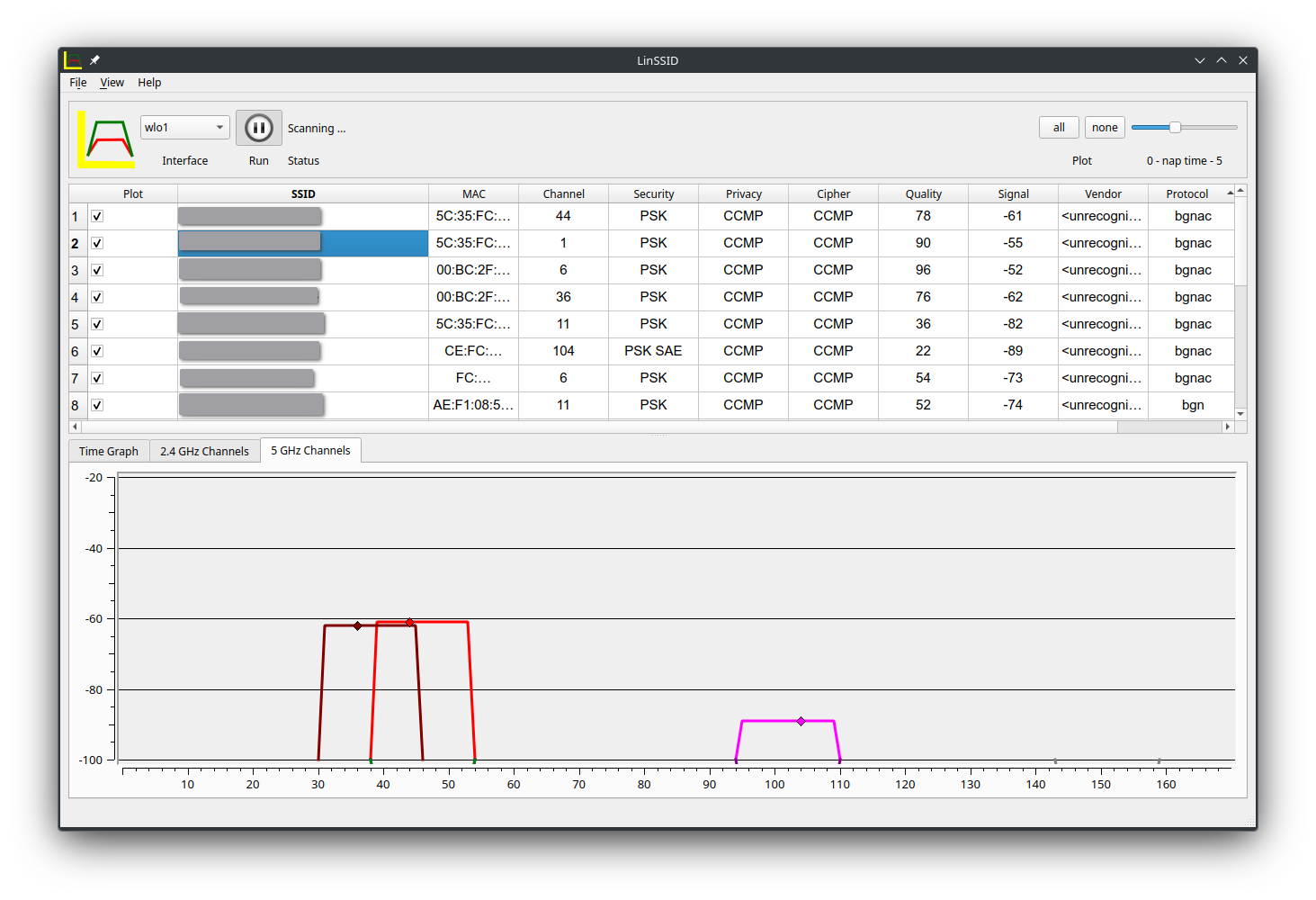
Are you operating in a place with several Wi-Fi networks surrounding you? That can mean that your wireless network is being choked by the others. You can find out just how choked your networks are by using a graphical network analyzer, such as LinSSID.
After launching the app (you'll probably be asked for the administrator password), press the start button and LinSSID will start analyzing the local Wi-Fi networks it can identify with your network card. It can give you a chart of which channels are being used and by which networks. If multiple networks are trying to use the same channels yours is, you can modify your router's settings to use different channels, clearing up some of the airways.
Why I like it
I was having Wi-Fi issues at my home this week, and I needed a network analyzer to troubleshoot. LinSSID was helpful in checking the channel crowding. I couldn't find any other graphical app for Linux that was as straightforward to use.
I do have one complaint though: The app at this point hasn't seen an update in several years, and its age clearly shows. It's not just cosmetic, either. There's no support for analyzing 6Ghz bands, which debuted with the Wi-Fi 6E standard years after LinSSID's last update. Of course, that won't be an issue if you're still using a router classified as Wi-Fi 6 or lower.
How to get it
LinSSID is available in many Linux software repositories, so you can likely find it by searching your software manager.
sudo apt install linssid #Debian and Ubuntu
sudo pacman -S linssid #Arch
sudo zypper install linssid #openSUSE
speedtest-cli: Internet speed check, in the terminal
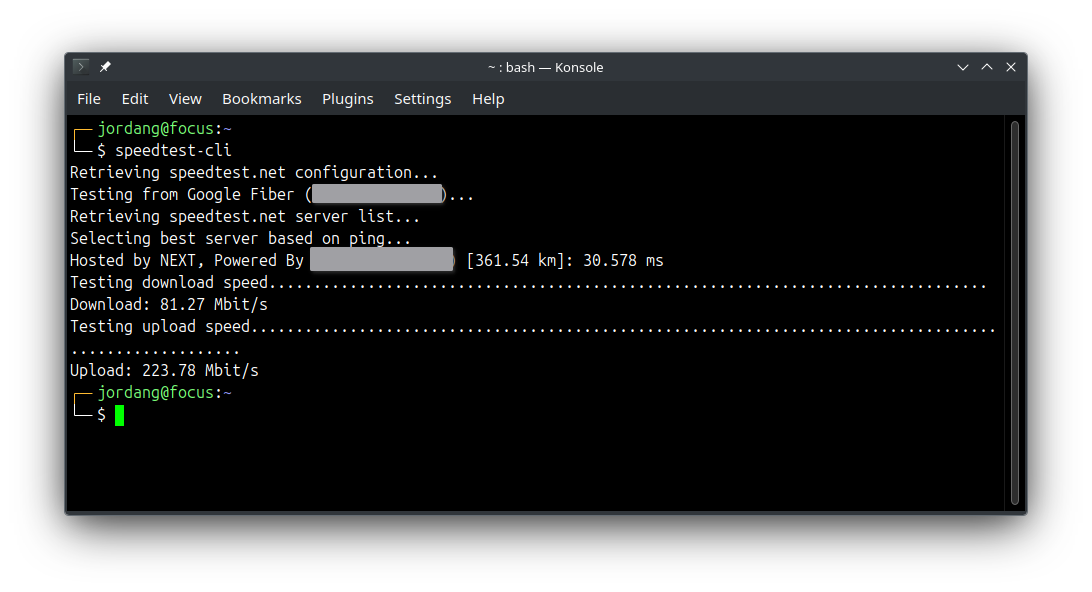
If you're the one responsible for your managing your local network, you're probably used to running speed tests. They're another useful tool in solving network issues, but if you use the speed test websites, you're often subject to annoying advertising, browser cookies, and ever else the website may decide to do through your browser.
There's a simple command line tool you can use instead, saving you from visiting any websites. Just run the command speedtest-cli in your terminal and wait for the results to come back, showing download speeds, upload speeds, and your ping speed.
You get several flags to tweak the test as well, like server and source IP selection, plus CSV output. If you don't need a verbose output, you can just run speedtest-cli --simple and once the test is done, you see the three most important test results in a simple list.
Why I like it
I just like being able to test my internet speed without visiting an ad-riddled website, especially when I'm already annoyed at my internet connection like I have been this week. I also like that speedtest-cli can be used in Bash scripting to automate regular tests.
How to get it
Fortunately, speedtest-cli is available across most popular Linux distributions. Just run one of the commands below, or visit the speedtest-cli GitHub release page to download the source code.
sudo apt install speedtest-cli #Debian and Ubuntu
sudo dnf install speedtest-cli #Fedora
sudo pacman -S speedtest-cli #Arch
sudo zypper install speedtest-cli #openSUSE
If none of these network-oriented apps were new to you, or if they just weren't that useful, then you check out my archive of apps recommendations. I write them every week, so be sure to subscribe to the newsletter too.