New to you? 3 useful Linux apps you should try
Take a look at this video editor, feed reader, and program killer.


It's the weekend again, and I have a few more software recommendations for Linux enthusiasts and beginners alike. These apps will help you to move off your dependence on non-free apps, or to just use your Linux device more efficiently.
Kdenlive: Free yet powerful video editing
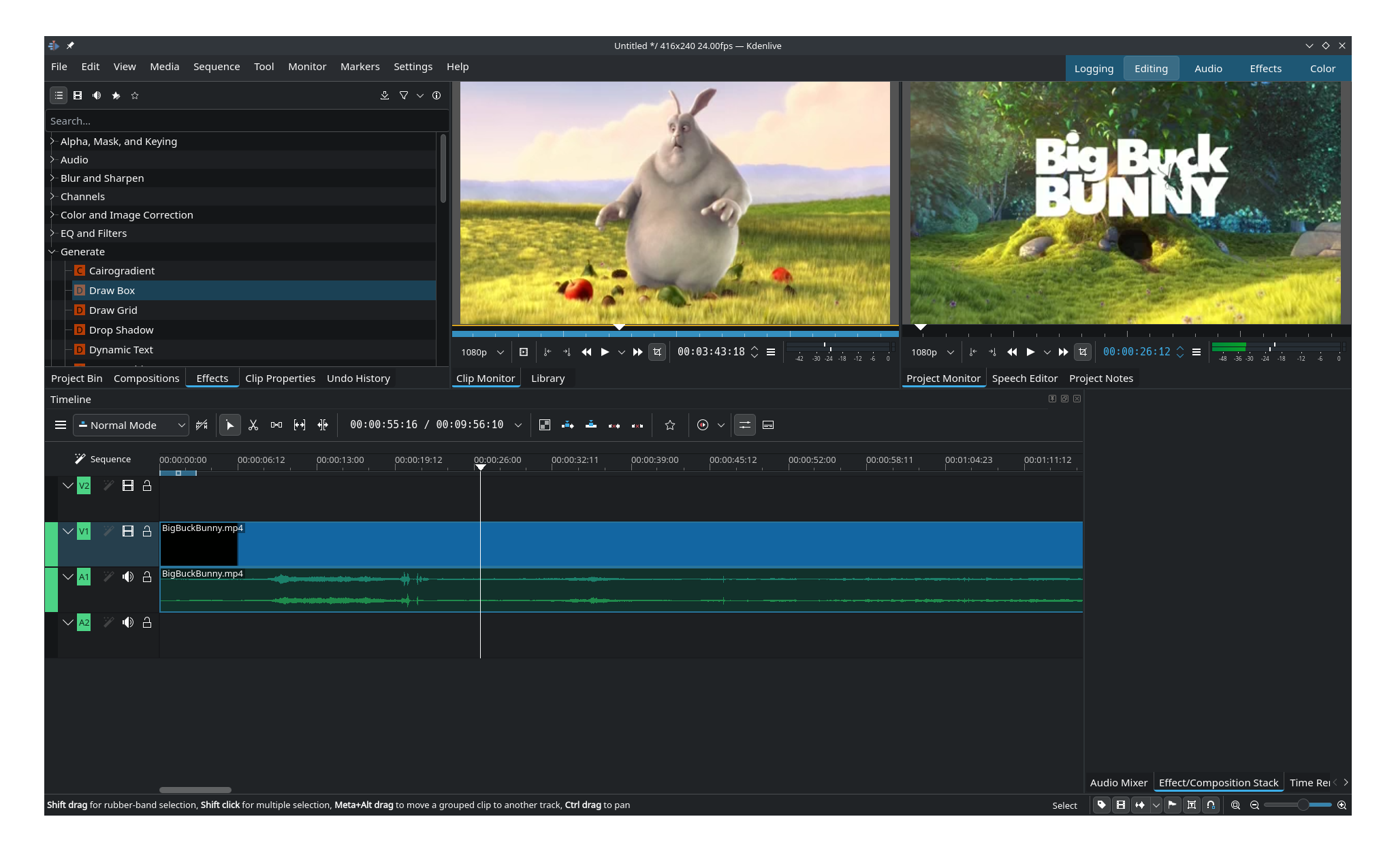
Do you want to be able to edit video without paying Adobe Cloud prices? Or mayb you just want to keep your media production pipeline free of proprietary code? Kdenlive is an open source (linear) video editor that's intended as a replacement for contemporary video editors.
It's part of the KDE app collection and sees frequent updates from the KDE team. In fact, Kdenlive, is just got a major update with the release of KDE Gear 26.04 this past week, gaining animated transition previews. It also stands apart from other KDE apps in that it's one of the few single pieces of software that has its own website.
Why I like it
It's pretty simple: Kdenlive can do a lot, and it doesn't cost anything or require any kind of login. It's free, it's local, it works.
I actually have two video editors installed on my laptop: Kdenlive and OpenShot, which I've written about before. While OpenShot is simpler and more straightforward to use, Kdenlive for more advanced and technical jobs.
How to get it
You can go to the Kdenlive download page for several installaiton options, including as an AppImage and Flatpak.
sudo apt install kdenlive #Debian and Ubuntu
sudo dnf install kdenlive #Fedora
sudo pacman -S kdenlive #Arch
sudo zypper install kdenlive #openSUSE
kill: Stop anything
If you're working in the command line and you have a process you know needs stopping, the kill command is your friend. For example, if Firefox uses process ID 139492, you can use this command to terminate the program:
kill 139492

Of course, this only sends the SIGTERM "terminate" signal, meaning the process doesn't have to respond to it. If you want to truly "kill" the process with no opportunity for the program to ignore it or save anything in buffer, kill gives you that ability. You just have to use the -KILL or -9 flag. For example:
kill -9 139492
Why I like it
The kill command comes in handy when you're working in a lightweight terminal environment and don't have a fancy GUI to manage background processes. All you need is the PID. Simple as that.
How to get it
The kill command is a builtin on most shells, so you don't have to install it. However, I should note that different shells implement the command a little differently. When you look up help with man or tldr or any other instruction set, the exact behavior of your kill command may be slightly different.
RSS Guard: Flexible feed reading
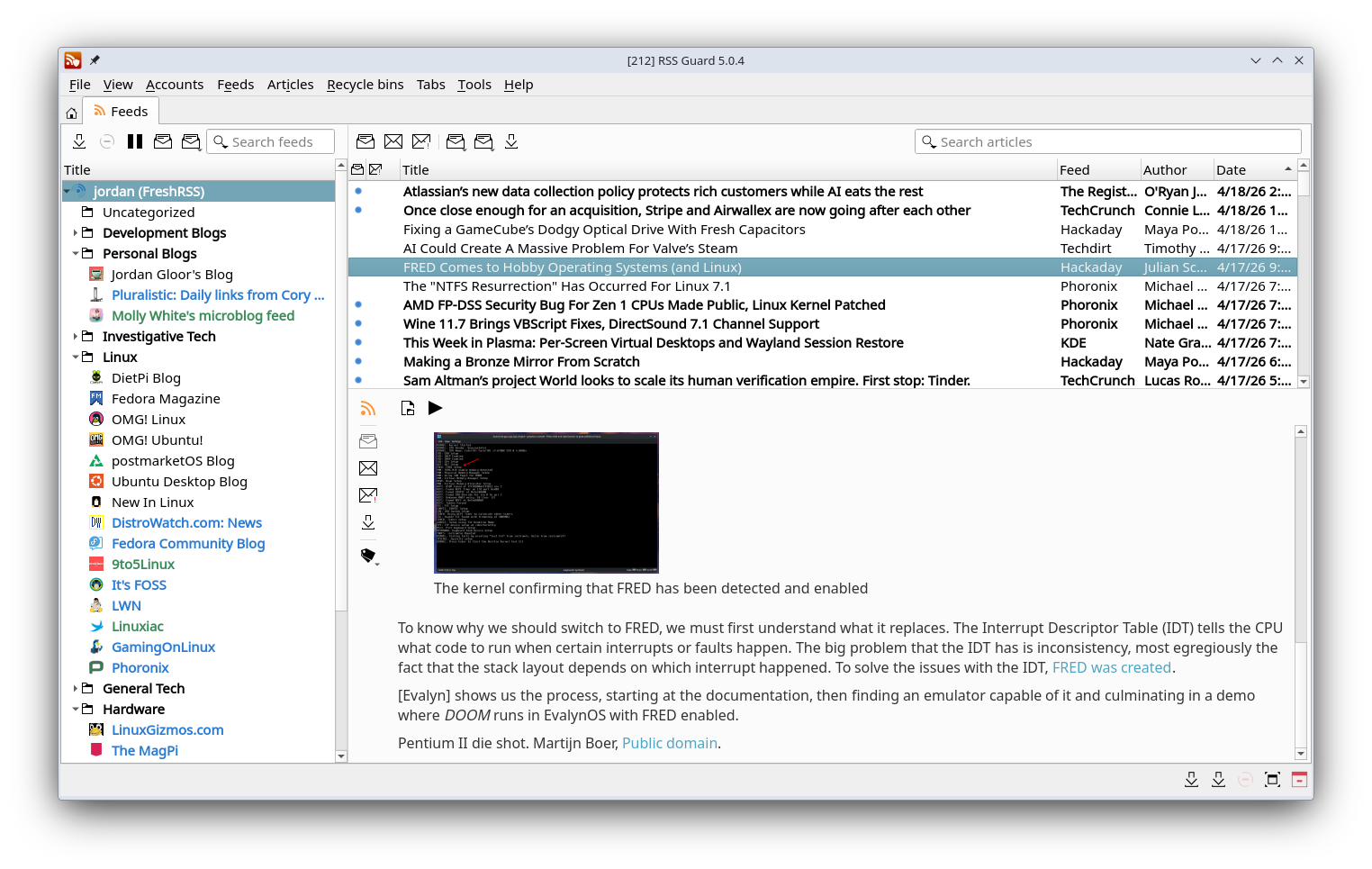
If you're one of the many who's recently rediscovered RSS feeds, then you should know that the experience is only as good as the feed reader you're using. RSS Guard is one of the best as far as desktop apps go.
I run instance of FreshRSS on my Raspberry Pi, and RSS Guard is my preferred way to connect to it on my Linux computer. You can use it as a local, private feed reader, bu it supports Google Reader, Gmail, Feedly, Nextcloud News, and Tiny Tiny RSS APIs so you can connect to and manage remotely synced servers. It can also play media including videos and podcast streams.
Why I like it
I like RSS Guard because it lets me read the news in a clean, organized interface. It's free and open source and doesn't come with any ads. Its support for multiple accounts means I can manage multiple feeds, for personal reading and for finding news sources.
The fact I can add and manage my FreshRSS feeds via RSS Guard is also a huge benefit.
I should add though that RSS Guard is in the process of a major overhaul. The 5.0 release earlier this year brought a lot of cleanups and removals that made the app the leaner tool I agree it should be. That said, the 5.x releases have had several data deletion bugs, so I recommend backing up your feeds and your settings regularly.
How to get it
You can find an AppImage of RSS Guard in the GitHub releases page, and since it's also available on Flathub, you'll likely find it in your Linux distro's software manager too.
You can also install it via the command line with these commands:
sudo apt install rssguard #Debian and Ubuntu
sudo dnf install rssguard #Fedora
sudo pacman -S rssguard #Arch
sudo zypper install rssguard #openSUSE
I recommend Linux software every week. If you missed it, check out last week's roundup of Linux apps, and be sure to subscribe to the NIL newsletter so you don't miss any future recommendations.