Getting comfortable with your Linux PC? Try these 3 neat apps
This week, I'm showing off a Google Maps alternative, a command monitoring tool, and a simple system cleaner tool for KDE Plasma.


I put together a list of Linux app recommendations every week, and this week, I'm looking at ones that will come in handy if you're trying to get settled into a fully open source workflow. Here's what I found.
GNOME Maps: An open source Google Maps alternative
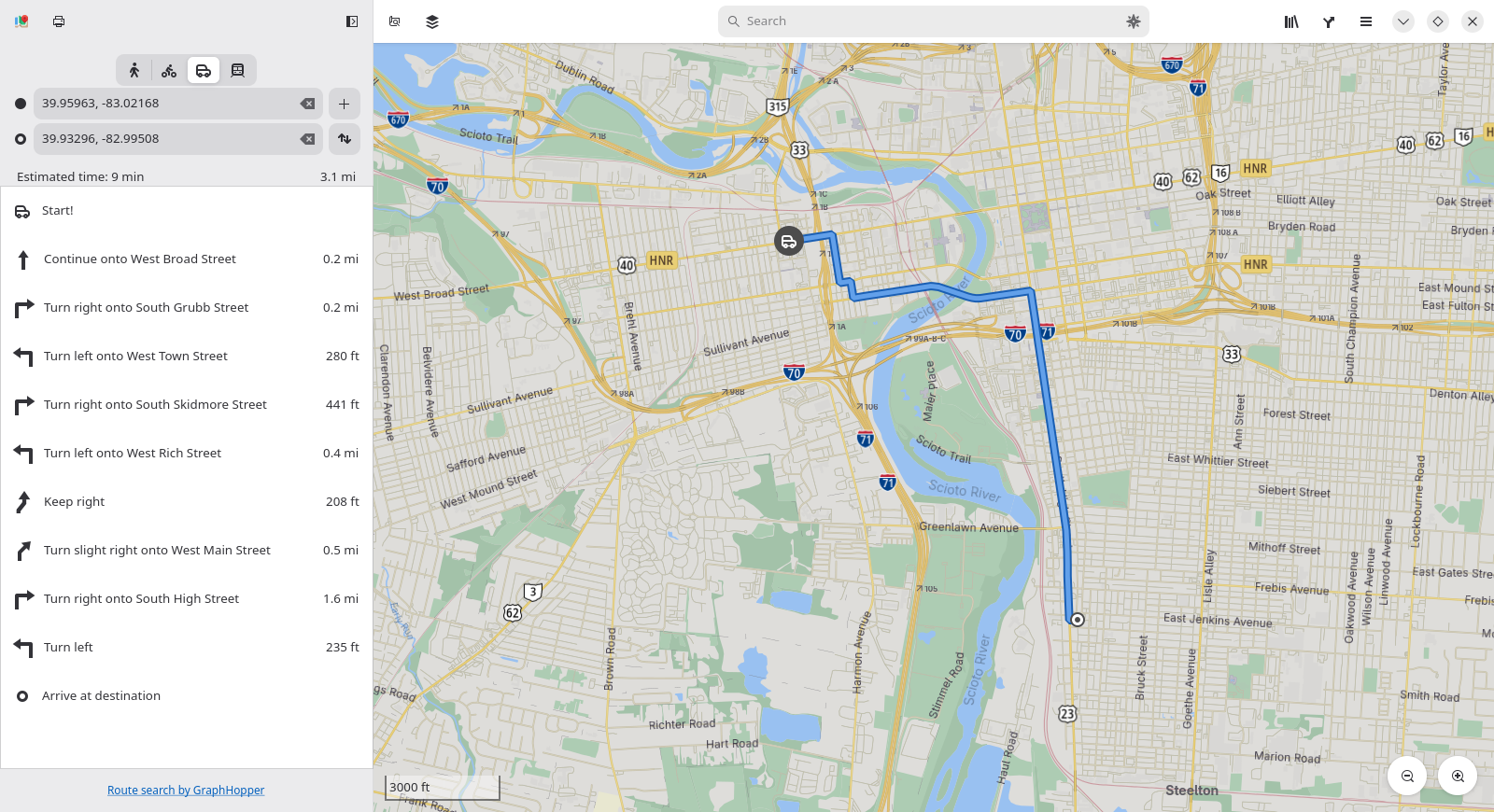
I know from experience that, when de-Googling your life, one of the most difficult apps to replace is Google Maps. One good alternative, though, and one that works on your Linux desktop, is GNOME Maps. It uses the open source OpenStreetMap database to give you a map of the world that you can create routes with turn-by-turn navigation.
The GNOME-built app supports driving, walking, biking, and public transit modes. You can search for businesses and addresses and find information about them, and also bookmark them for future reference. When you have a route established, you can print it off like we did in the 2000s. Best of all, you don't need to register an account to use it.
Why I like it
There are several useful little features buried in GNOME Maps that I appreciate it more than other open source map apps I've used. For example, there's an "Export as Image" feature that lets you quickly get an image of whatever you're looking at, including a route you've created, that you can then share or print for easy offline navigation.
I also contribute to OpenStreetMaps, so I appreciate that, if I sign in to my OpenStreetMap account, I can also edit the map with its built-in tools.
How to get it
GNOME Maps is available widely across Linux distributions, so you can probably find it just by searching your software browser. You can also find it on Flathub and Snapcraft, or install it via the command line with one of these options:
sudo apt install gnome-maps #Debian and Ubuntu
sudo dnf install gnome-maps #Fedora
sudo pacman -S gnome-maps #Arch
sudo zypper install gnome-maps #openSUSE
Progress: Monitor the progress of coreutils
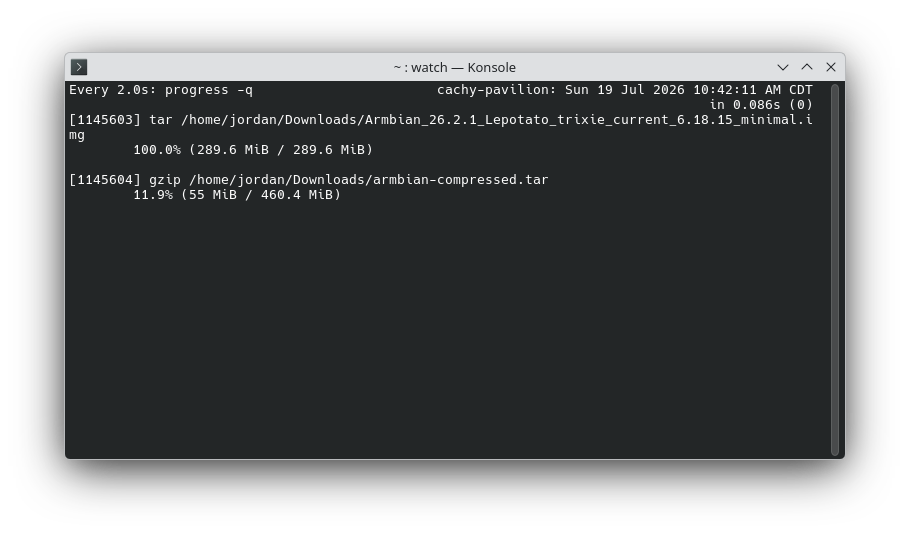
If you use the terminal very much, you know some coreutils commands like tar and cp force you to wait a while their processes complete. Some don't give you much of an idea of what's happening or how long you have to wait, at least not if you don't pass a verbose flag.
The progress command is built to give you a better idea of what's going on when you run a coreutils program. It can give you percentages of processed data and estimates of time to completion. It's flexible, letting you either monitor a specific command or passively watch for commands to run.
For example, tar -xvf myfile.tar & progress -mp $! in Bash lets you monitor the process of files being extracted from an archive. If you don't want to append & progress -mp $! to every command, though, watch progress -q creates a live-updated view in your terminal of any coreutil process that starts on your system.
Why I like it
When dealing with big files, like my movie collection, it's nice to have an idea of how long a process is going to take.
How to get it
The progress package is available in just about any Linux distribution, so you can install it with one of these commands:
sudo apt install progress #Debian and Ubuntu
sudo dnf install progress #Fedora
sudo pacman -S progress #Arch
sudo zypper install progress #openSUSE
Sweeper: A simple system cleaner for Plasma
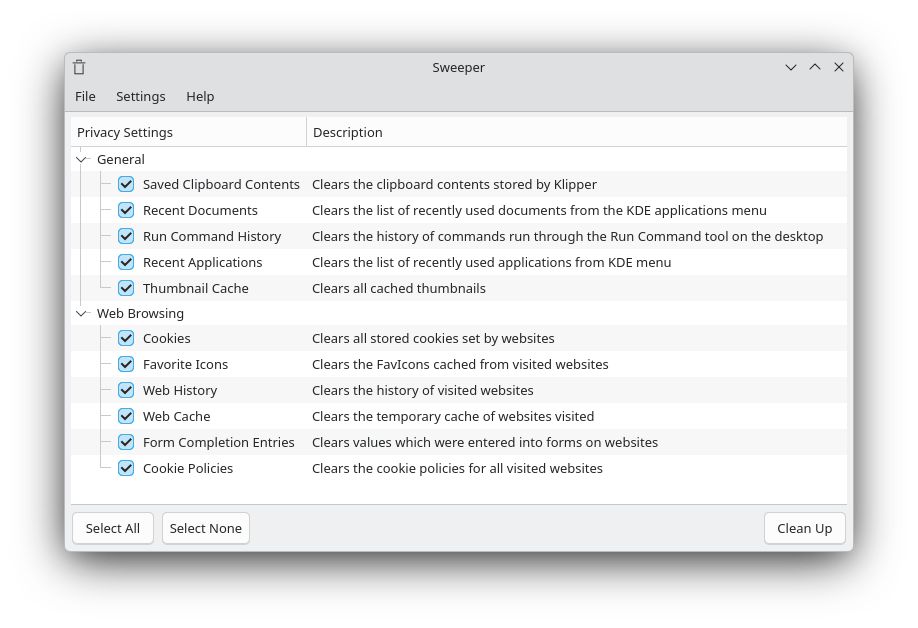
If you want to make sure whatever you've been doing on your KDE Plasma desktop doesn't leave any trace files, you could get advanced tools like BleachBit, or you could just install Sweeper. It has one job and one job only: hide evidence of activity on a Plasma computer.
Sweeper cleans up cookies, temp files, recent documents, Run history, web history, and more. When you launch Sweeper, by default every one of these cleanup options is selected, so you can just hit "Clean Up" or Alt+C to wipe everything. If some specific file type you want saved, though, you can uncheck the box for that type before a cleanup.
 Jordan Gloor
Why I like it
Unlike a lot of the sketchy, spyware-laced system cleaning tools out there, Sweeper is completely open source, ad-free, and built by the well-respected KDE community. You don't have to worry about Sweeper doing anything other than deleting your files.
How to get it
The Sweeper tool is available in most Linux repositories, so search your software browser for it. Alternatively, run one of these commands based on which distro you're using.
sudo apt install sweeper #Debian and Ubuntu
sudo dnf install sweeper #Fedora
sudo pacman -S sweeper #Arch
sudo zypper install sweeper #openSUSE
Those are all the app recommendations I have this week. If you didn't find anything useful to you, be sure to check out my archive of Linux software recs.