Upgrade your Linux PC with these 3 handy apps
This week it's all about reviews. I'm trying a terminal history viewer, a log viewer, and an image viewer and editor.


A good app is hard to find, especially in the age of slopware. That's why I look every week for legitimately useful Linux apps either enable you to do something you couldn't before or make your daily Linux experience a little better.
Here's what I found this week.
Atuin: Better terminal history
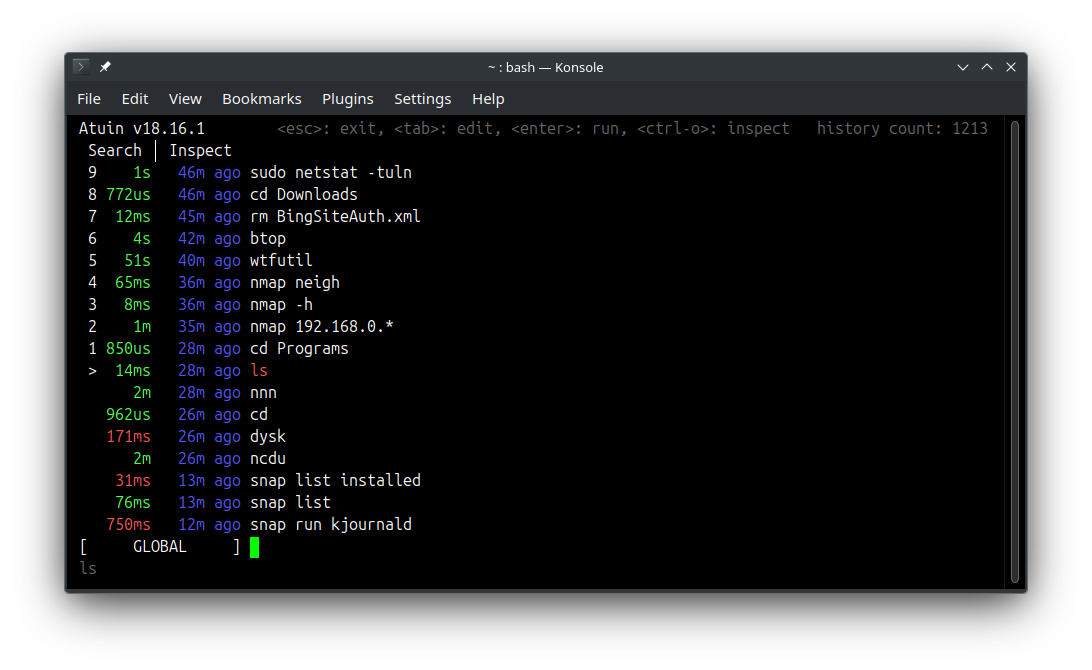
Typically when you press the up arrow key in the Linux terminal, you get the last command you entered. Ctrl+R will let you search your command history, too. But what if you had even more powerful search built into your terminal?
The Atuin tool replaces the up arrow and Ctrl+R functionality with its own terminal interface, giving you a fast, detailed, and filterable look at your command history. It lists how long ago you ran each command, plus how long it took to run the command. What's more, an Atuin server can sync your search history across
Why I like it
While I don't use its sync tool (or, yikes, its AI tool), I like being able to easily find commands I ran in the past. It's just a simple quality-of-life upgrade to the terminal that feels like it should be there to begin with.
Atuin is also nice because it works across multiple shells. Fish, Bash, Zsh, and more are supported.
How to get it
The recommended way to install Atuin is with its install script, which walks you through importing your existing history and setting up sync and other tools, if you want them.
curl --proto '=https' --tlsv1.2 -LsSf https://setup.atuin.sh | shJournald Browser: Easily read systemd logs
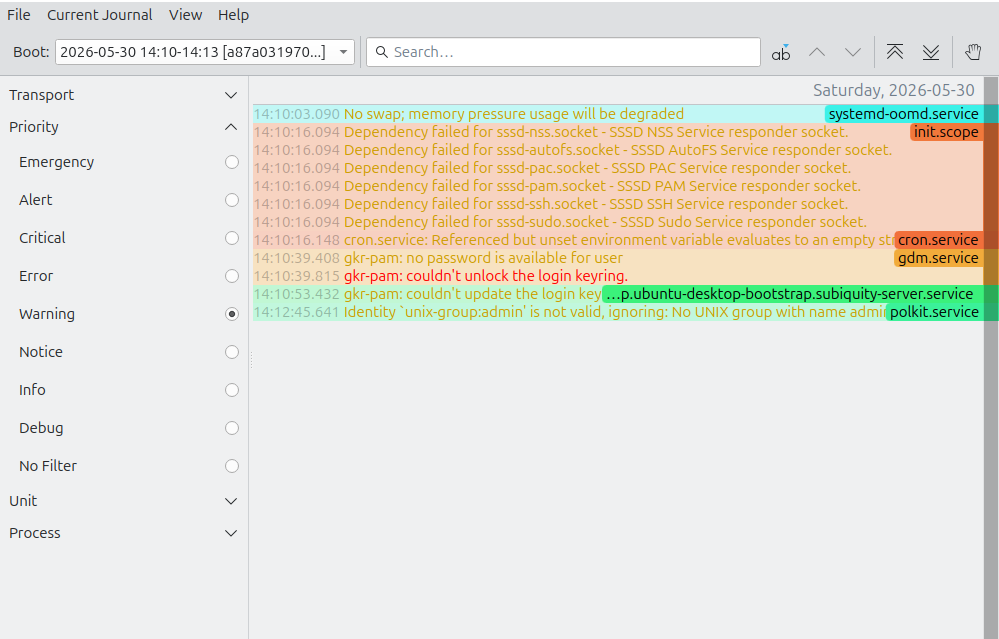
Reading systemd logs can be very helpful in troubleshooting a Linux computer that uses the most common init system. They can be kind of impenetrable, though, especially if you aren't comfortable with the command line.
Journald Browser though lets you review everything that's been going on in your Linux PC in a visually pleasing interface, with simple filter tools. It's a KDE app, and you can even use it to look at the systemd logs of remote computers or offline ones in the drive of a non-operating computer.
Why I like it
Similar to how Windows Event Viewer used to help me solve problems on Windows, the Journald Browser helps me resolve issues with my Linux PC without resorting to pulling up the terminal and trying to recall the systemd commands for reviewing logs.
Being able to view by category/severity of log is especially helpful. The color coding also makes visually inspecting the logs extra simple.
How to get it
You can install Journald Browser on just about any distribution, so search your software browser for it first. Otherwise, you can try one of these commands.
snap install kjournald #Any distro with Snap enabled
sudo apt install kjournaldbrowser #Ubuntu 26.04 and later
sudo dnf install kjournald #Fedora
sudo pacman -S kjournald #Arch
sudo zypper install kjournald #openSUSE
Gwenview: Simple image editing
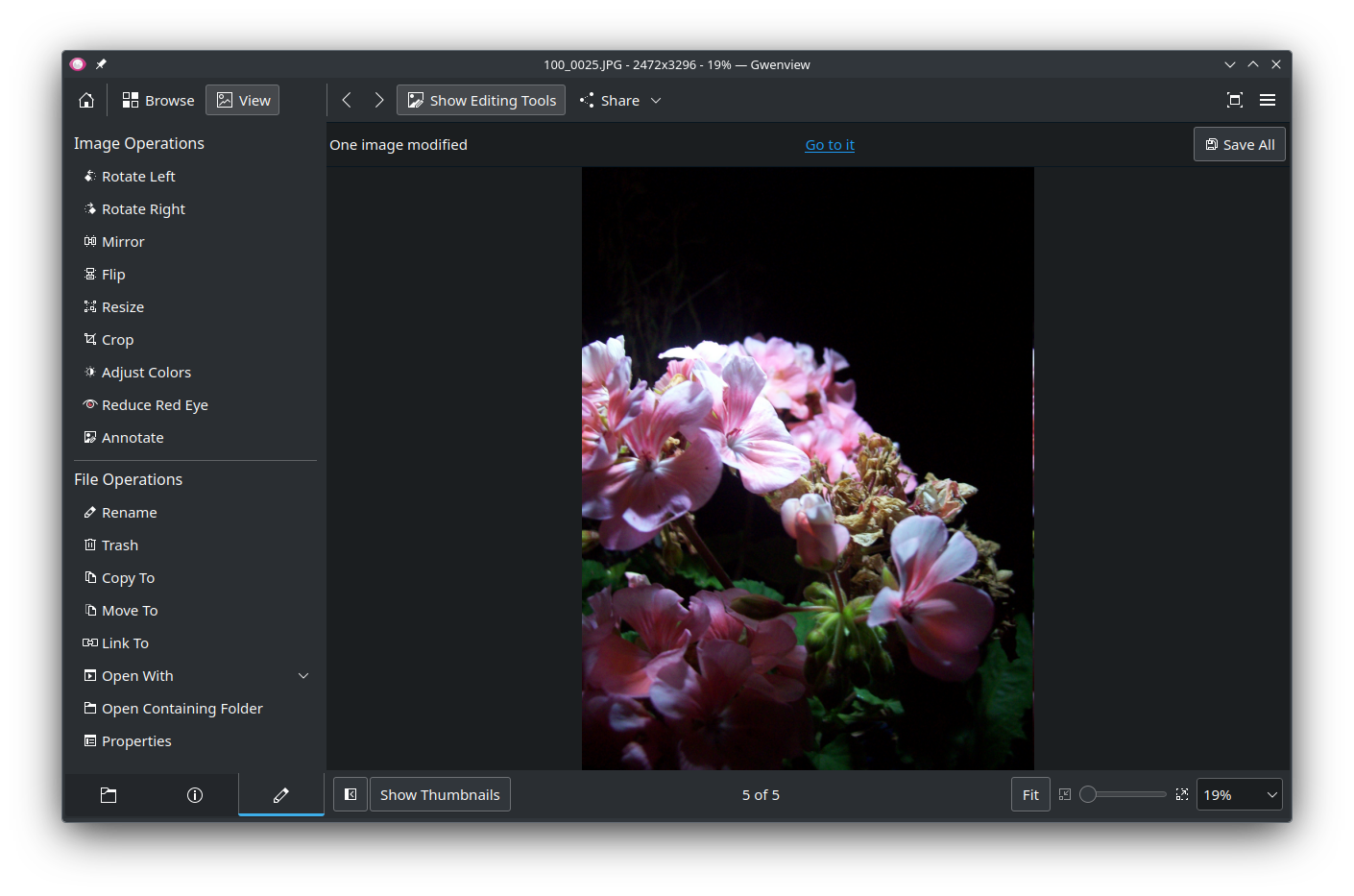
Almost everyone working with computers ends up eventually needing to do some kind of image editing. Complexity and difficulty of the edit can vary dramatically, though, and while advanced image editing tools like GIMP can handle technically challenging jobs, GIMP can itself be challenging to learn or even engage with.
Gwenview, though, is a simple tool for viewing and editing your photos. You can use it to browse your photos and make basic, common edits to them as you go. Mirror, flip, reduce red eye, and adjust colors are all possible with a few quick clicks.
Why I like it
I like Gwenview because it's another KDE app that's slightly more advanced than a basic image editor but only just so. Some small features like its annotation tools and aspect ratio-preserving cropping makes the numerous small but crucial-to-presentation image edits I make a week a breeze.
How to get it
Gwenview is on Flathub and available across many Linux distributions, so you'll likely find it if you search your software store. Alternatively, you can use one of these commands:
sudo apt install gwenview #Debian and Ubuntu
sudo dnf install gwenview #Fedora
sudo pacman -S gwenview #Arch
sudo zypper install gwenview #openSUSE
That's all I have this week. Be sure to check out my earlier recommendations in the archive, if you want more.