3 more handy Linux apps to try
This week I'm exploring an MKV file editor, a kanban-style productivity app, and an in-terminal file manager.


Getting productive with your Linux computer can be a challenge if you don't know what software is available to you. I find useful Linux apps every week, so here are three free and open source options for those who want to do more.
MKVToolNix GUI: Easily edit MKV files
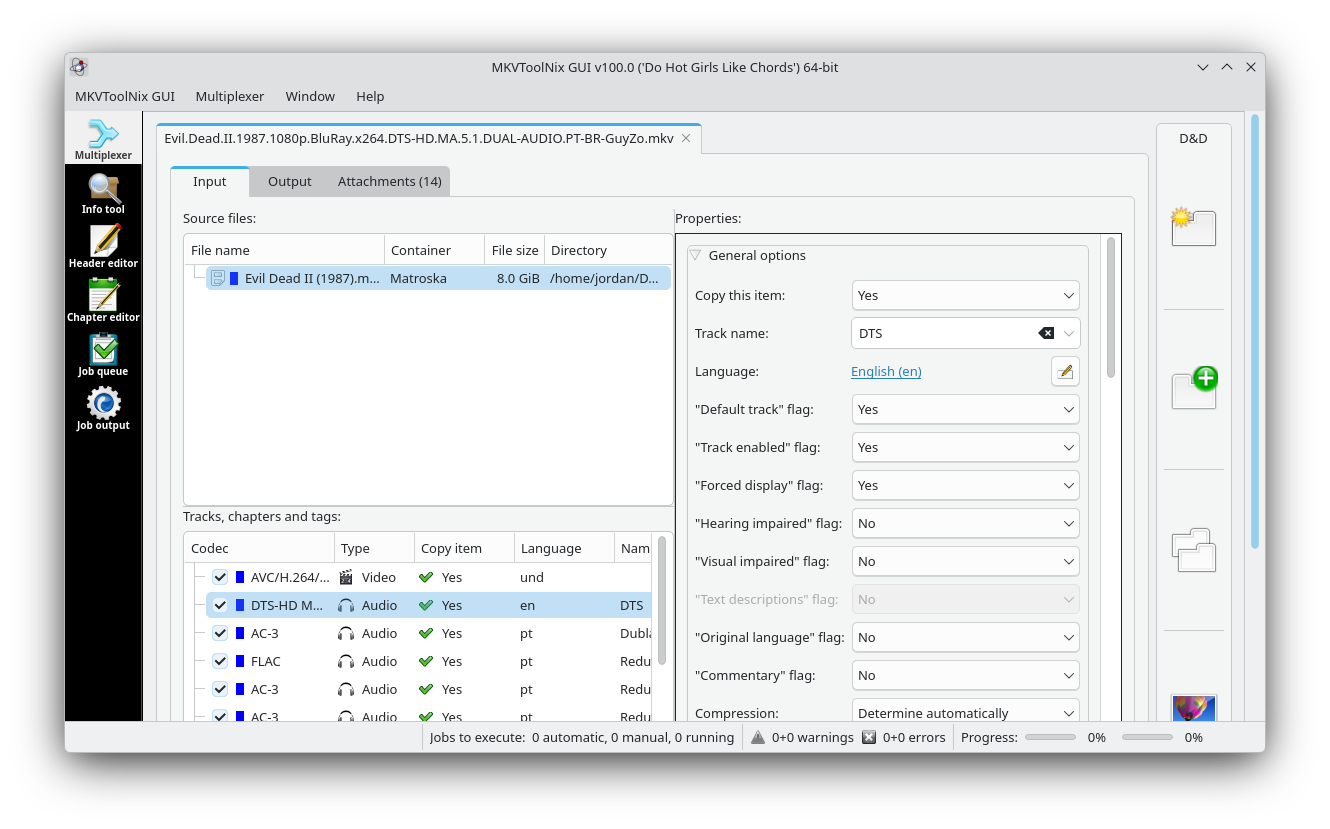
If you're a media collector like me, you have several MKV files containing movies and shows from your collection. Sometimes, those MKV files don't act exactly how you want them to. For example, subtitles might be enabled by default when you play the MKV file.
Those kinds of internal settings can be modified easily with MKVToolNix GUI. It's a user-friendly graphical implementation of the powerful mkvtoolnix command-line program, and it gives you fine-tuned control of just about every aspect of an MKV file. From subtitles to chapters to audio tracks, every element is made configurable in the app. Once you're done tweaking a file, the multiplexer can generate a new MKV file with your configuration.
 Jordan Gloor
Why I like it
This app has helped me optimize my media library so every piece of media acts by default the way I want it to. While the interface showing all the different elements of a Matroska file can be overwhelming, it's actually simple to use once you identify the parts you need for your particular MKV editing job.
How to get it
MKVToolNix GUI is available widely across Linux distribution software repositories, so you can probably find it by searching your software manager. It's available on Flathub, and you can also get an AppImage file from the official MKVToolNix download page.
sudo apt install mkvtoolnix-gui #Debian and Ubuntu
sudo dnf install mkvtoolnix-gui #Fedora
sudo pacman -S mkvtoolnix-gui #Arch
sudo zypper install mkvtoolnix-gui #openSUSE
Progress: Simple kanban boards for productivity
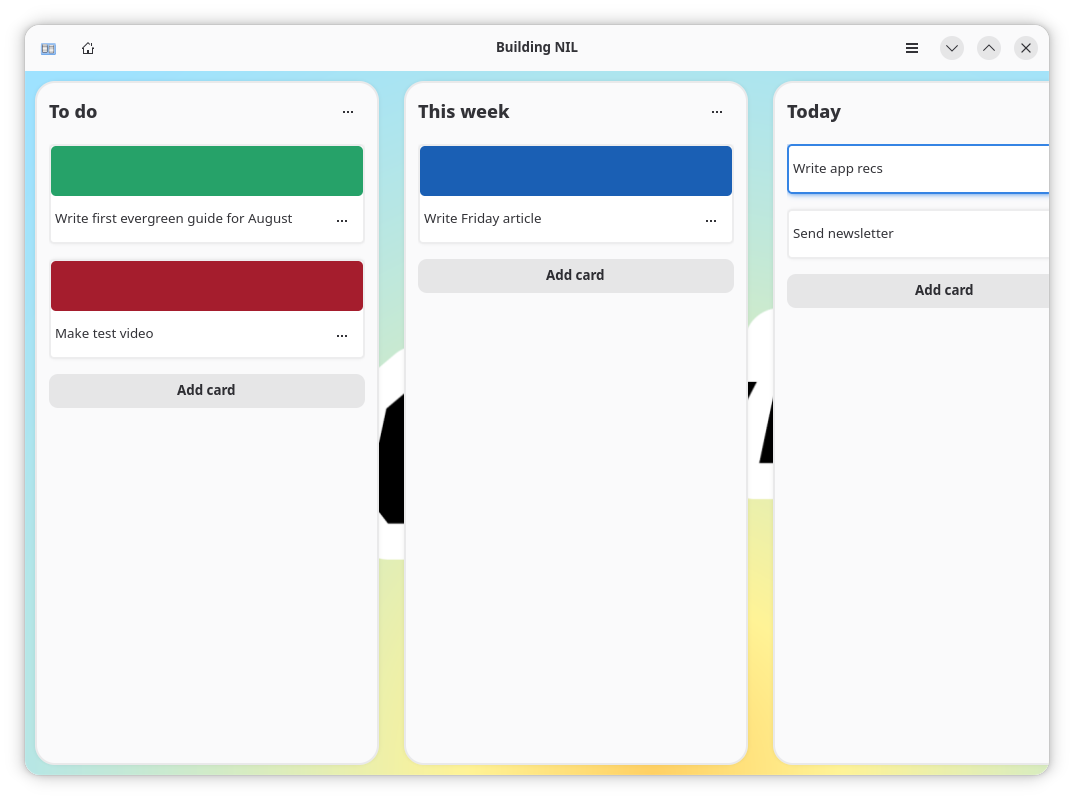
There are many approaches to productivity out there, and for every approach there are dozens of apps and platforms built to enable it. One completely free and open source option for Linux fans is Progress. It's a simple and straightforward kanban board app that lets you manage multiple project boards at once, all offline.
For those not familiar with kanban boards, they involve a series of lists that each hold interchangeable cards that typically represent individual tasks. You can customize the lists any way you like, but a common approach is to have a "To do" list, an "In progress" list, and a "Done" list. You move task cards between them to track project progress; thus, the app's name.
Why I like it
I came across Progress while researching the command line tool by the same name I discussed in last week's app recommendations. It was a blessing in disguise since I'd been spinning my wheels in terms of productivity lately. While its customizability is pretty basic, using Progress to track my development of this website in particular is helping me get moving.
How to get it
You can get Progress on Flathub. If your Linux distro's repository is Flathub-connected, you can search it and install it that way. Folks running Arch with the AUR enabled can install it with the yay -S progress-tracker command.
Superfile: A beautiful file manager in your terminal
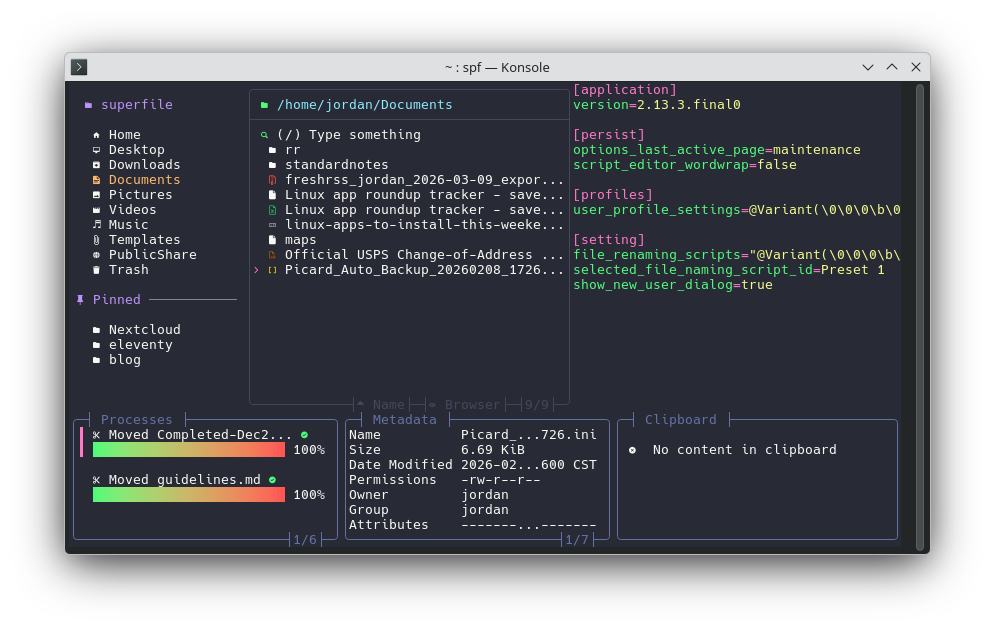
One of the most basic uses for the Linux terminal is managing files. However, memorizing commands to do everything you need to do can be challenging. You can start managing your files in the terminal without memorizing commands though by using an app like Superfile.
All you need to remember is the command to launch Superfile, spf and you have a complete text-based user interface in your terminal that won't be unfamiliar if you're used to graphical file browsers. There's a navigation panel with common and pinned locations to the left, a directory viewer (that can be expanded with multiple panes) in the center, and a file preview panel to the right. Below all of that are some handy smaller panels including a process tracker, a metadata viewer, and even a clipboard manager.
Why I like it
Superfile looks really nice in a terminal window, and its navigation speed makes it easy to quickly find the file I'm looking for without a mouse. I also like that it even works inside my Yakuake drop-down terminal I programmed to appear when I hit the Caps Lock key.
How to get it
The simplest way to get the app is to run one of the official Superfile installation scripts. If you run Arch Linux, you can alternatively install it with the sudo pacman -S superfile command.
The apps I listed here today are not all I have to recommend. You can check out my archive of app roundups to find more handy apps that will run on your Linux PC.